Customization
1.Introduction
So you’ve just purchased an HTML template and now you have to customize it before you can put it online, but you’re not experienced with code so you’re not sure how to go about it. Well, rest easy, because in this tutorial we’re going to step you through the entire process. We’re going to be working off the assumption you’ve never seen a line of HTML before, let alone edited one, so no matter how new you are to working with code you’ll be shown exactly what to do every step of the way. Let’s start at the very beginning. You may learn basics here, here and here.
2.Getting Started
If you are able to read this documentation locally, which means you have successfully downloaded the package and extracted the zip.
The file structure as follows :
  Drone HTML
  ├── Documentation/
  ├── HTML/
  │   ├── css/
  │   ├── fonts/
  │   ├── images/
  │   ├── js/
  │
The folder you have to customize is the HTML folder. Copy HTML folder from the package and paste it in your Project Folder.
(This helps you to prevent overwriting in original files. so if you messed up something, you will get the original here.)
3.Requirements
You will need the following sofwares to customize this template.
- Code Editing Software (eg: Brackets,Dreamweaver, Sublime Text or Notepad)
- Web Browser for testing (eg: Google Chrome or Mozilla Firefox)
- FTP Tool to upload files to Server (eg: FileZilla)
3.Change Theme Scheme
This Landing Page template come with customization tool included. This tool allows you to preview color schemes available in your template package. Note that this tool is only available in the demo preview page of the template:
Open the live demo preview page to find out whether your template comes with this tool:
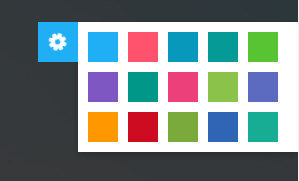
This template come with 15 color scheme style files (one.css to fifteen.css), so in order to change your color scheme, you will need to include a reference to these files in your .html file.
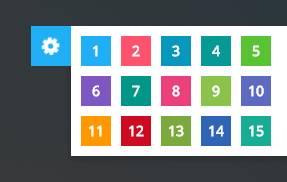
To change color scheme:
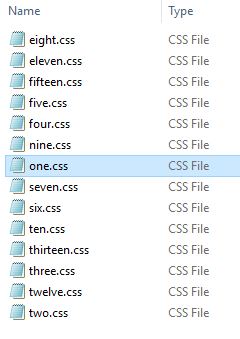
1. Open /site/css/ folder of your template package. You will see 15 color schemes style files (one.css, two.css, three.css, ..... , fourteen.css, fifteen.css). Select any color scheme file you want to use. You can preview color schemes on the template demo preview page:
2.Open index.html file with any text editor.
3.Add a reference to the color scheme style sheet file inside the <link> element. The <link> element goes inside the <head> section. E.g:
<link rel="stylesheet" href="css/five.css">
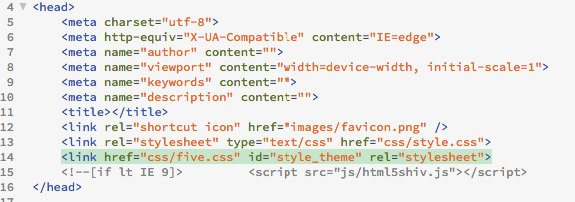
Save the file. Refresh your website to see the changes. Color scheme has been successfully changed:
4.Enable/Disable Back to top button
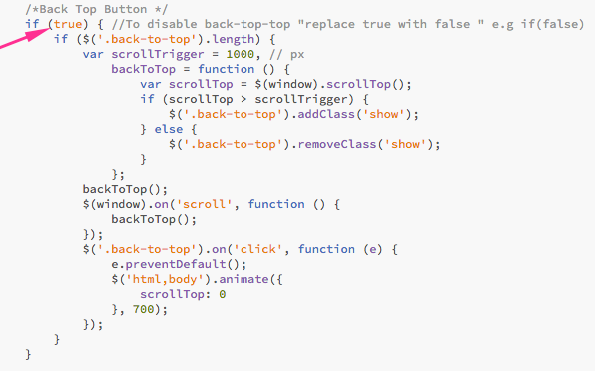
You can Enable or Disable Back to top button (scroll top) by adding "true" of "false" keywords to the function
- Open main.js file from ProjectName > js > main.js
- Find Back to top button function (Check below image )
- By default, Back to top button is enabled and set as "true"
- To disable Back to top button, change keyword "true" into "false"
- To enable Back to top button, change keyword "false" into "true"
5.Enable/Disable Animations
You can Enable or Disable animations
- To Disable animations, Remove "scrollreveal.min.js" javascript from html (check below image)
- To Enable Add "scrollreveal.min.js" javascript to html

6.Enable/Disable Animations in mobile screens
You can Enable or Disable animations only in mobile phones also.
- To Disable animations, make default attribute in javascript to "false" custom javascript (check below image)
- To Enable set the deafault value "true" (By default it will be set to true)
